Text message alerts
How to subscribe to text alerts after each call, and how to unsubscribe with the dashboard or by replying STOP.
On this page
Voksha can text you after every completed call, with a link to listen to it. Text alerts are optional. They only start when you subscribe, and you can stop them at any time.
What you get
| What the texts are | Transactional alerts. One text after each completed call, with a link to listen to it |
| How many | One per completed call. The number depends on how many calls you get |
| Marketing | None. We only send transactional texts, and never promotional or marketing ones |
| Cost | Voksha does not charge extra. Message and data rates from your mobile carrier may apply |
| Who can subscribe | Agents on a paid plan |
An alert looks like this:
New call for Your Business Name. Listen: https://voksha.com/c/abc123
Where to find it
Dashboard → Notifications in the sidebar, under Account settings.
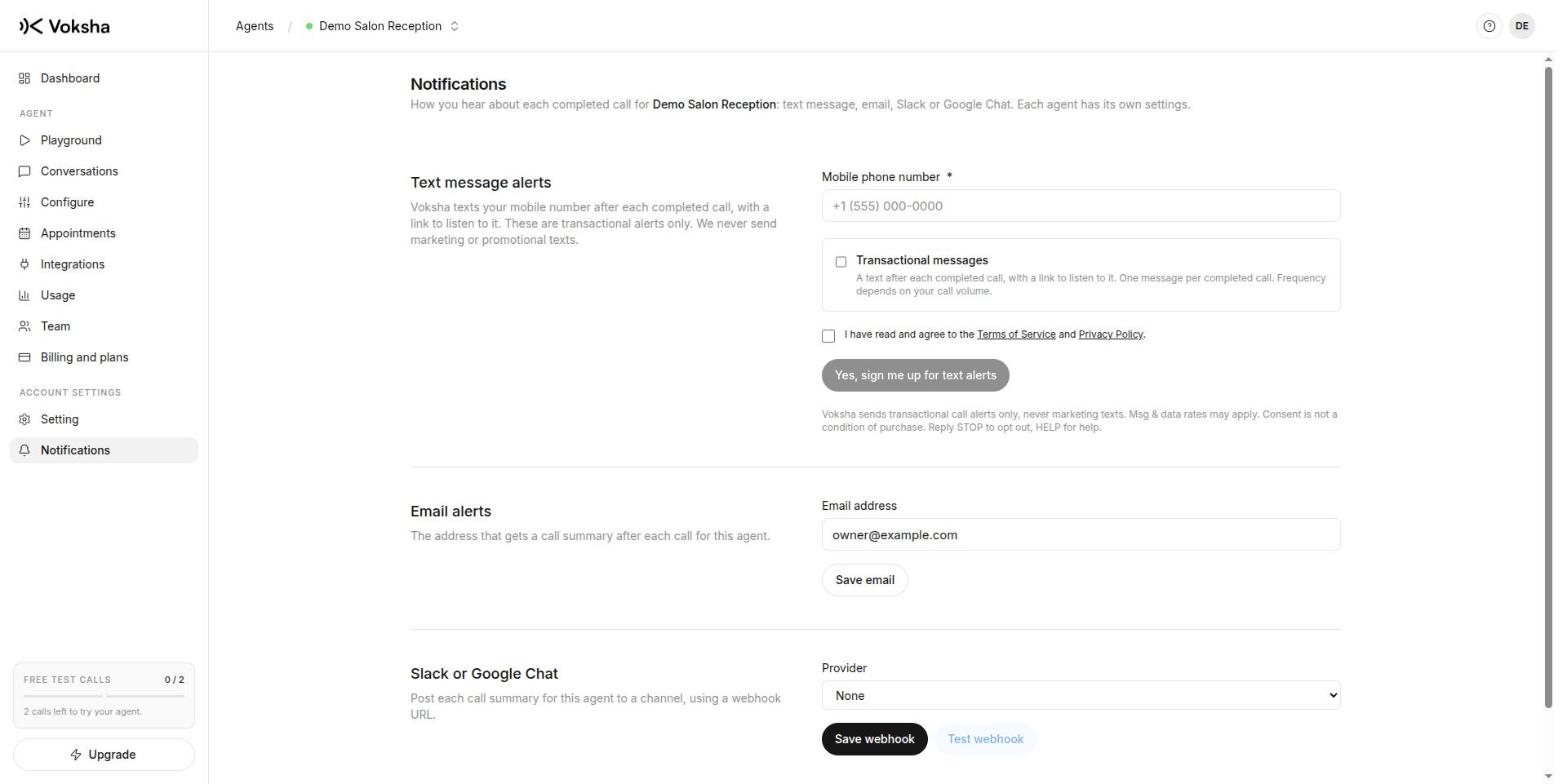
Text alerts are set up for each agent. The agent you have selected at the top of the dashboard is the one you are setting up. Each agent has its own mobile number, its own consent and its own subscription.
How to subscribe
- Pick the agent at the top of the dashboard, then open Notifications in the sidebar.
- Enter your mobile phone number. A US number can be entered as ten digits. For any other country, start with + and the country code.
- Tick the box for Transactional messages. It is not ticked for you. You choose.
- Tick the second box to confirm you have read the Terms of Service and Privacy Policy.
- Select Yes, sign me up for text alerts.
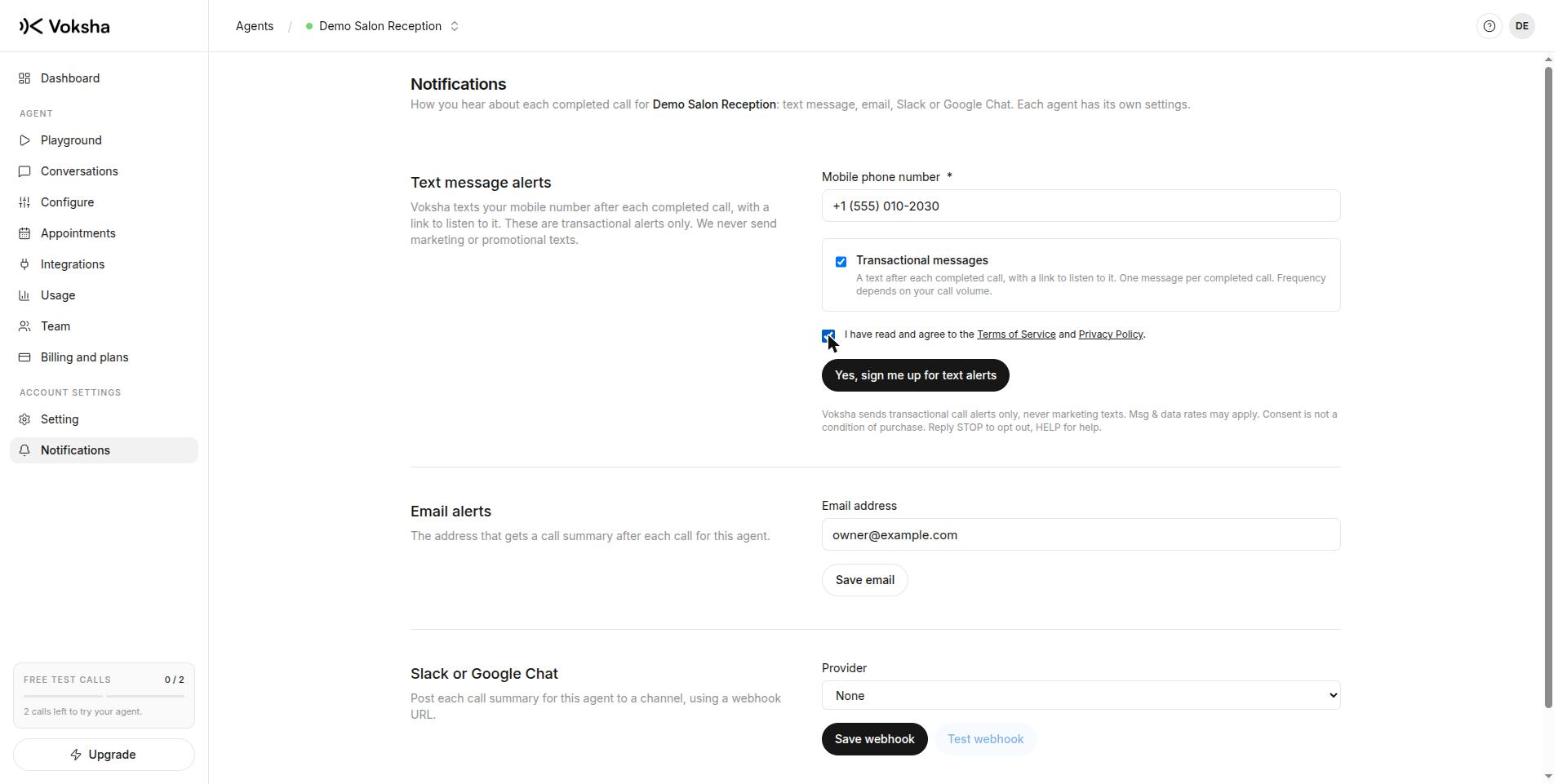
The button stays disabled until both boxes are ticked. We then send you one confirmation text:
Voksha: You're subscribed to call alerts. One message per completed call. Msg & data rates may apply. Reply STOP to opt out, HELP for help.
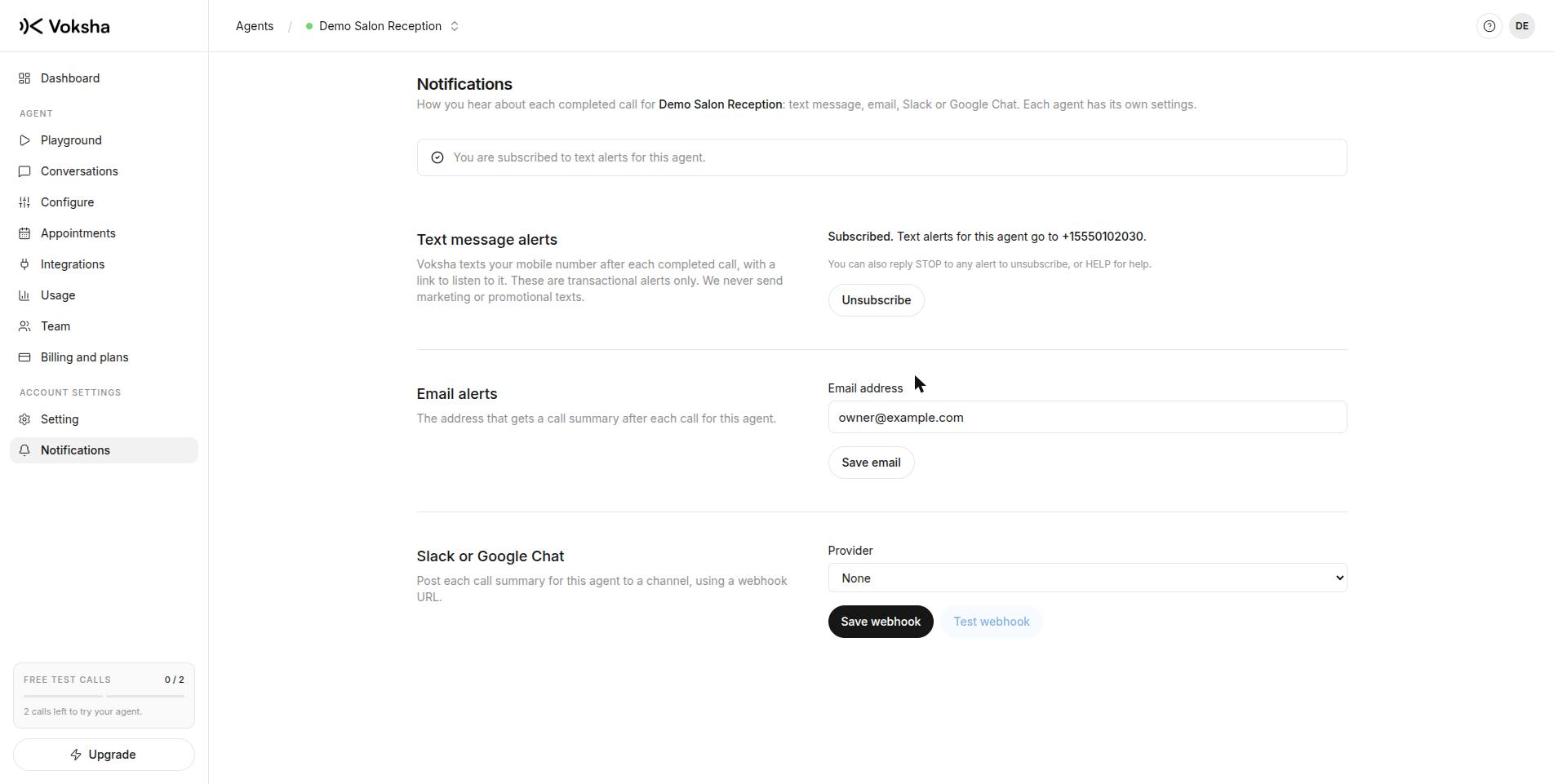
Once you are subscribed, the page shows Subscribed and the number the alerts go to, with an Unsubscribe button.
How to unsubscribe
There are two ways. Either one stops the texts straight away.
| Way | What to do |
|---|---|
| In the dashboard | Open Notifications and select Unsubscribe |
| From your phone | Reply STOP to any alert |
After you unsubscribe we send no more alerts to that number. To start again, subscribe again on the Notifications page and tick both boxes.
Getting help
Reply HELP to any alert, or email [email protected]. We reply with how to reach us and how to stop the messages.
When your subscription ends
Text alerts are for paid plans. When an agent's paid plan ends, its text alerts stop automatically and its consent is removed. If you start a plan again, subscribe to text alerts again on the same page.
If no texts arrive
- Open Notifications and check it says Subscribed, with the right number
- Check you picked the agent that took the call, and that it is on a paid plan
- Check you did not reply STOP to an earlier alert. If you did, subscribe again on the page
- Check the call shows in Calls. If it does, the problem is the sending, and [email protected] can look