Knowledge base
Give your agent your own menu, price list, FAQ or website, so callers get your answers instead of a general one.
On this page
Your instructions tell the agent how to behave. The knowledge base tells it what you actually charge, when you actually open, and what your policy actually says. Add a document and the agent answers from it.
On a call the agent does not read the document out. It finds the part that answers the question and answers in its own words, so a long menu or a staff handbook works as well as a short note.
Where to find it
Dashboard → Agents → open the agent → Configure.
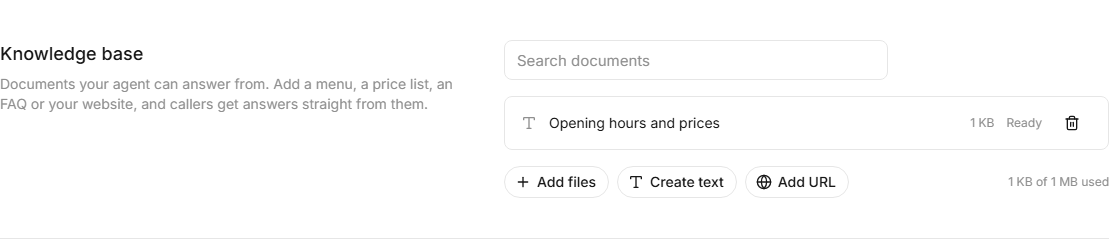
The four ways to add something
Add files
Upload what you already have. PDF, Word, plain text, Markdown, HTML or EPUB.
This is the most reliable option and the one to reach for first, because nothing has to be fetched from anywhere. A menu, a price list, a policy document or a staff handbook all work.
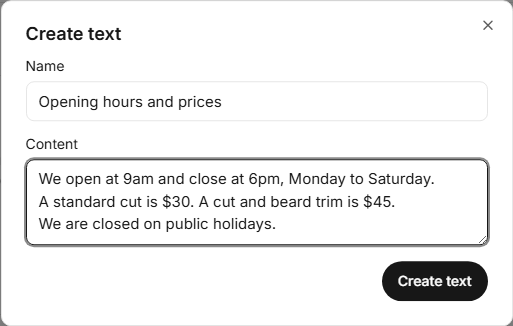
Create text
Type or paste it in and give it a name.
Best for the things that live in your head rather than in a document: opening hours, parking instructions, the three questions every caller asks. Name it for what it holds, like Opening hours and prices, so you recognise it later.
Add URL, one page
Point at a single page on your website, for example your FAQ or your pricing page.
Turn on the weekly check and we look at that page again every week, so the agent follows the changes you make on your own site. Leave it off and the agent keeps the version it read.
Add URL, sitemap or whole website
Read many pages at once.
- Sitemap reads the pages listed in your sitemap. Use the pattern box to narrow it, for example
*/help/*for only your help pages. - Whole website starts at one page and follows links from it. You choose how deep to follow and how many pages to read.
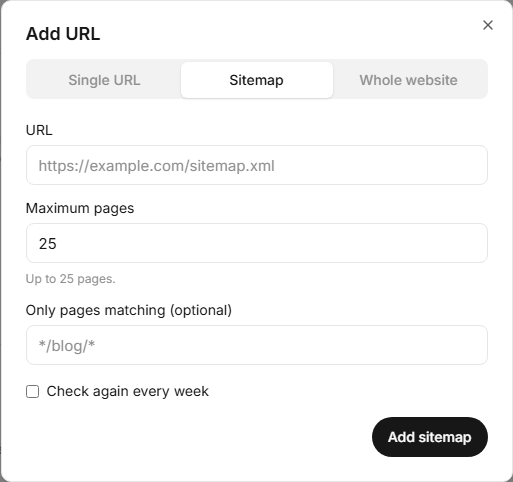
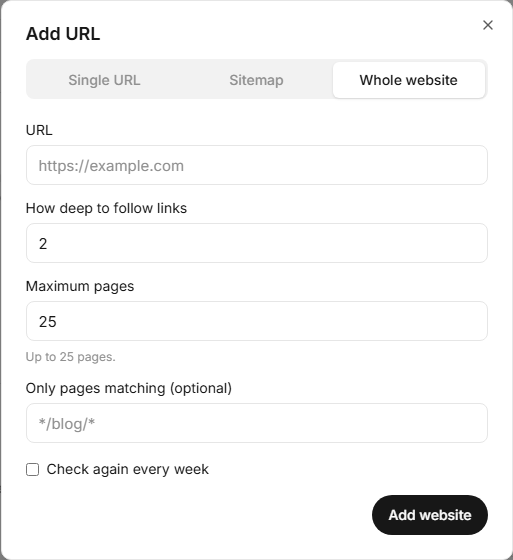
Reading a website is not instant. The panel shows how many pages it has read while it works, and the pages appear as they arrive.
Preparing, Ready and Failed
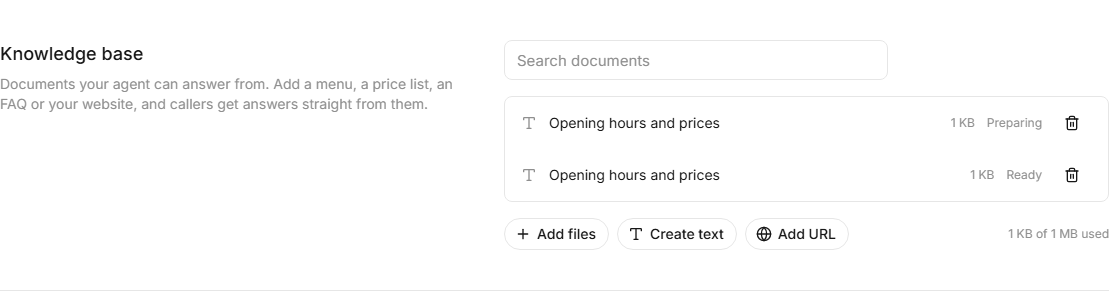
| Status | What it means |
|---|---|
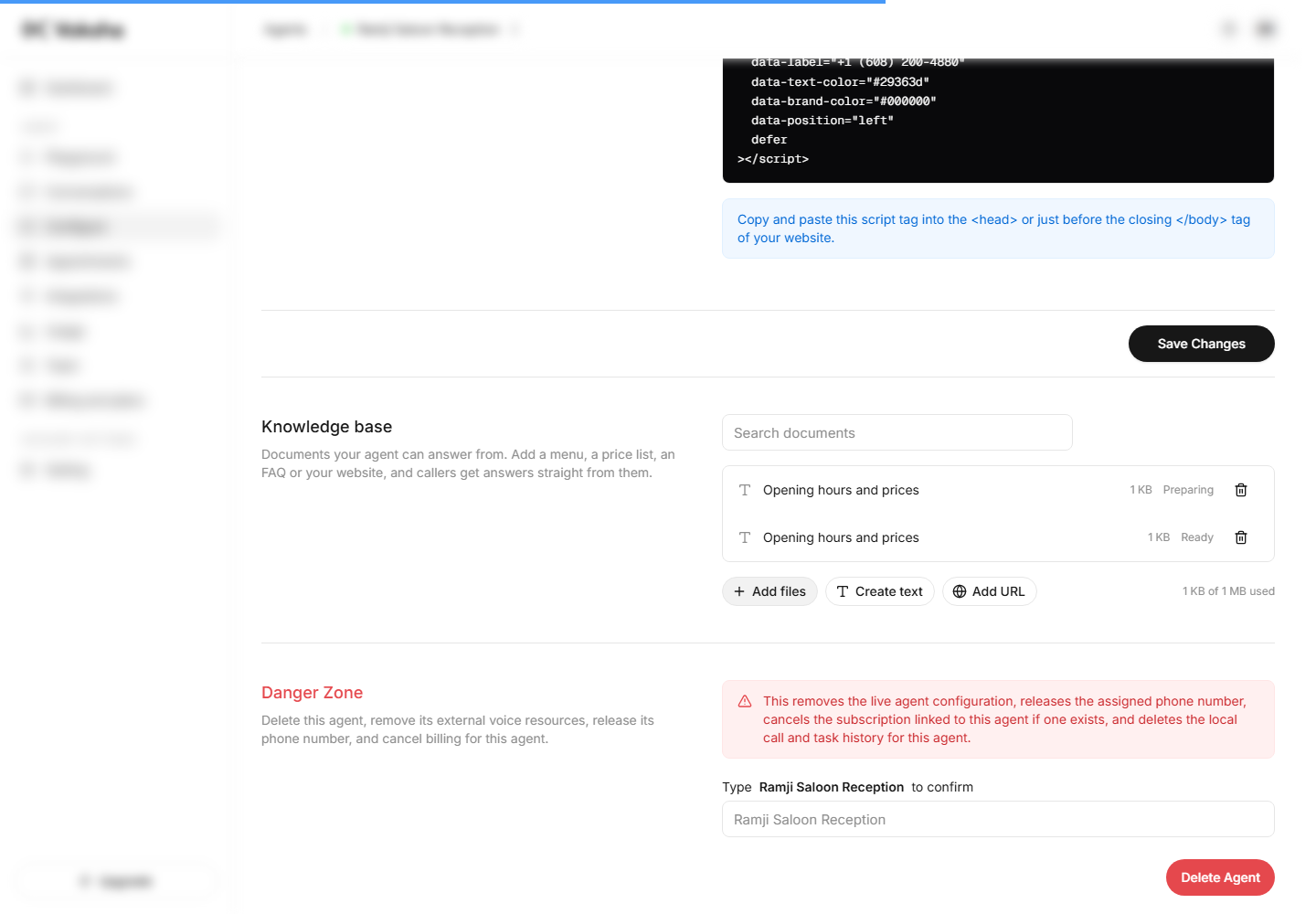
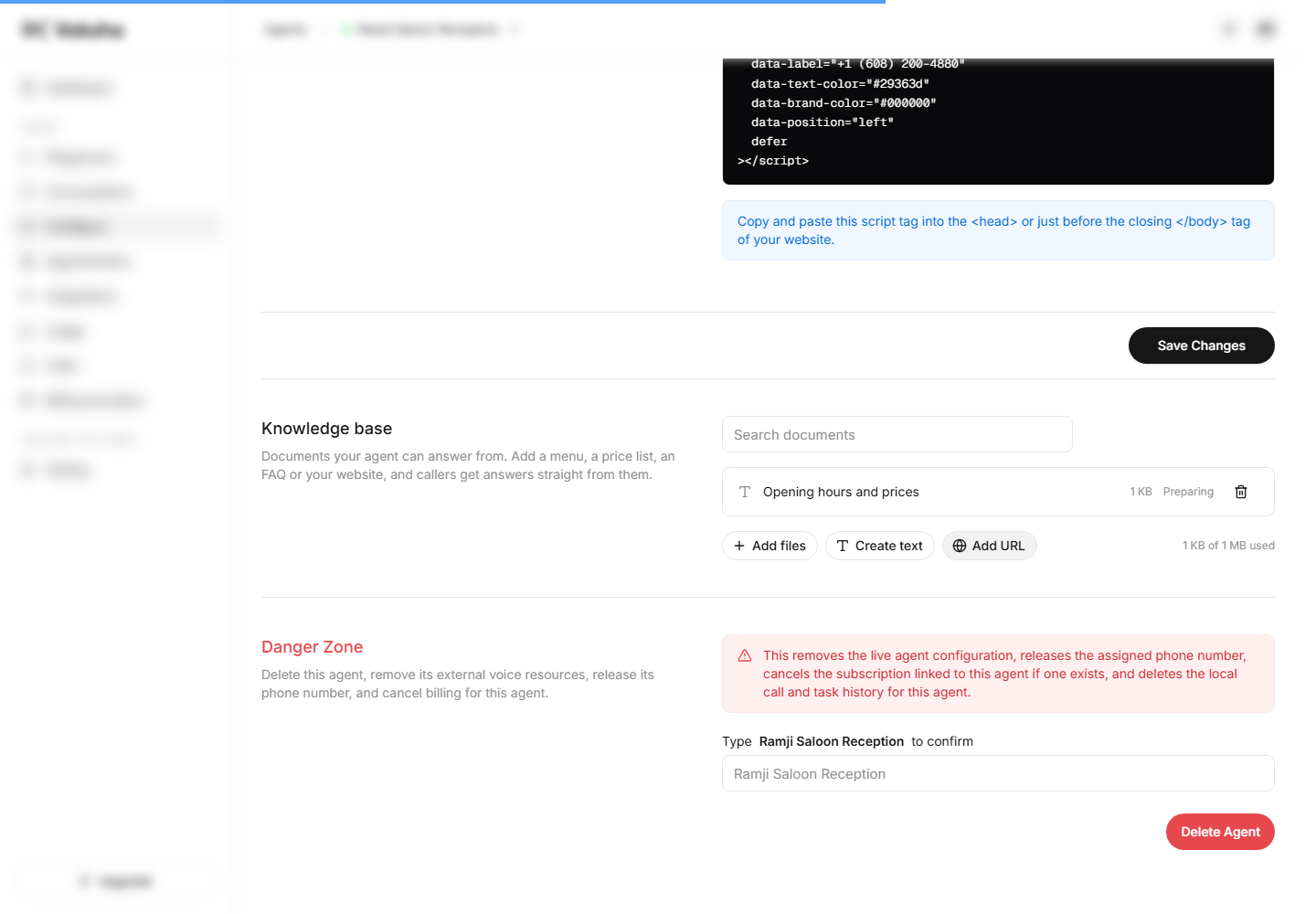
| Preparing | We are getting it ready. It is not used on calls yet. Usually under a minute |
| Ready | The agent is answering from it |
| Failed | It could not be read. Remove it and add it again, or upload the same content as a file |
Your allowance
Each agent has its own allowance, shown under the list as something like 310 KB of 1 MB used.
That is room for what a business actually needs: a menu, a price list, an FAQ and a policy document. If you are running out, remove what you no longer need, or talk to us about more room.
Documents belong to one agent. If you run two agents and want both to answer from the same price list, add it to both.
If your website blocks us
Some sites sit behind bot protection that shows a security check page instead of the real content. When that happens we refuse the page and tell you, rather than saving a security check page and letting your agent quietly learn nothing from it.
If you see that message, the content is still easy to add. Copy it into Create text, or save the page as a PDF and use Add files.
Removing something
Remove takes it off the agent straight away and frees up your allowance. Removing a whole website reading takes all the pages that came with it.
Getting good answers out of it
- Write for a listener. A caller hears the answer. Short sentences and plain prices beat a dense table.
- One subject per document.
Opening hours,Prices,Cancellation policy. The agent finds the right one faster than it finds the right paragraph of a document about everything. - Say the exception. "We close at 4pm on Christmas Eve" is the sort of thing callers ring to ask.
- Keep it current. A price list from last year answers confidently and wrongly. Files and typed text never change on their own, and only a page with the weekly check turned on follows your site.
- Test it. Open the Playground and ask the question a caller would ask. That is the fastest way to see whether the document is doing its job.